File size
How to Compress Audio for Email and Messaging
An audio file that's too big to send is one of the most common audio problems there is. The fix is simple arithmetic plus a couple of sensible choices. This guide shows you how to calculate the setting that fits, and how far you can go before it sounds bad.
Quick answer
Convert to MP3 at the bitrate that fits: bitrate (kbps) ≈ target size (MB) × 8,000 ÷ length in seconds. Aim for about three-quarters of the email limit, use mono at 48–64 kbps for speech, and keep music at around 128 kbps. The Audio Compressor shows the estimated size before you start.
Why audio files get so big
Uncompressed audio, such as WAV from a recorder or a computer, stores every sample in full. At CD quality that's 1,411 kilobits for every second of stereo sound, or roughly 10 MB a minute. A 30-minute interview is over 300 MB.
Compressed formats like MP3 throw away detail you're unlikely to hear and store the rest efficiently. The amount of data per second is the bitrate, measured in kilobits per second (kbps). For MP3 at a constant bitrate, the file size is simply:
Size in MB ≈ bitrate (kbps) × length (seconds) ÷ 8,000
That means you can work out exactly what will fit before compressing anything. The Audio Compressor does this sum for you and shows the estimated new size as soon as you change a setting.
Know your limit, then leave a margin
Each service sets its own limit, and they change from time to time, so check the current figure for the one you use. Gmail and Outlook.com publish attachment limits of around 20–25 MB per message, and many workplace mail systems set lower ones.
There's a catch with email. Attachments are encoded into text before they're sent, which makes them about a third bigger in transit, and some services count that encoded size against the limit. A safe rule of thumb is to aim for about three-quarters of the stated limit: roughly 18 MB for a 25 MB limit, or 15 MB for 20 MB.
Messaging apps behave differently. Many re-compress audio and video that you send as media, which can reduce quality further. Where the app offers it, sending the file as a document or file attachment usually delivers it unchanged.
Calculate the bitrate you need
Rearranging the formula gives the highest bitrate that fits:
Bitrate (kbps) ≈ target size (MB) × 8,000 ÷ length (seconds)
Worked example: a 45-minute interview (2,700 seconds) that has to fit in 18 MB. 18 × 8,000 ÷ 2,700 ≈ 53 kbps. The nearest setting below that in the compressor is 48 kbps. Because it's speech, choose mono too.
Or read it off this table, which shows how many minutes fit at each bitrate:
| Bitrate | Minutes in 10 MB | Minutes in 15 MB | Minutes in 18 MB | Sounds like |
|---|---|---|---|---|
| 32 kbps | 41 | 62 | 75 | Clear speech, noticeably dull. Music suffers. |
| 48 kbps | 27 | 41 | 50 | Good speech in mono |
| 64 kbps | 20 | 31 | 37 | Very good speech; music acceptable in mono |
| 96 kbps | 13 | 20 | 25 | Decent music in stereo |
| 128 kbps | 10 | 15 | 18 | Good music for most listeners |
| 160 kbps | 8 | 12 | 15 | The compressor's highest setting |
Minutes are rounded down. The compressor displays sizes in binary megabytes (1 MB = 1,048,576 bytes), so its estimate reads about 5% lower than the decimal figures here. Either way, you'll fit.
Tested: real sizes
The same 10-second music clip at three presets
The WAV original was 1.7 MB. Sizes are the real output files; the music is synthesised for this guide.
Each step halves the size, exactly as the formula predicts. Listen to the cymbals: they're the first thing to turn dull and swishy at low bitrates, which is why 32 kbps suits speech but not music.
Mono or stereo?
At a fixed bitrate, a stereo file shares its data between two channels. A mono file spends all of it on one. For speech (meetings, lectures, interviews, voice notes) there's no useful stereo information, so mono gives you noticeably better quality for the same size. Choose stereo only for music, or for recordings where the left/right placement matters.
Sample rate: the third setting
The sample rate sets the highest frequency a file can contain: roughly half the rate. At 44.1 kHz that's about 22 kHz, beyond the limit of human hearing. At 16 kHz it's about 8 kHz, which still covers the frequencies that make speech intelligible.
Lowering the sample rate matters most at low bitrates. With fewer frequencies to encode, the encoder can spend its limited data on the ones that matter, so a 32 kbps voice file at 22 or 16 kHz usually sounds cleaner than the same bitrate at 44.1 kHz. For music, keep 44.1 kHz and raise the bitrate instead.
Step by step
- Trim first. Remove silence or chatter at the start and end with the Audio Trimmer. Every second you cut is data you don't have to compress.
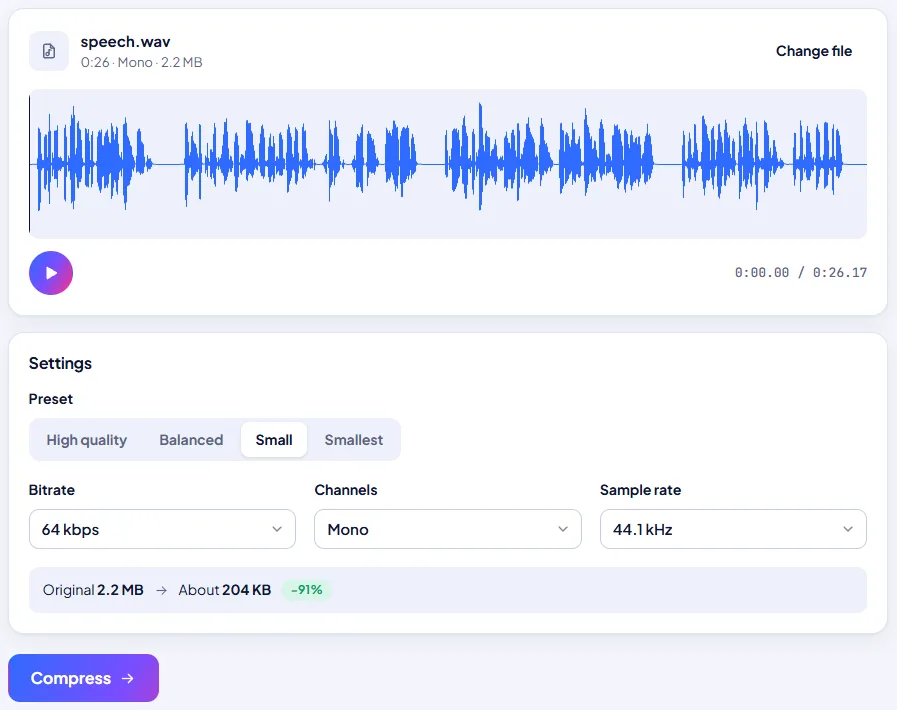
- Open the file in the Audio Compressor. The estimate line shows the original size, the estimated new size and the percentage saved.
- Pick a preset as a starting point: High quality (128 kbps), Balanced (96 kbps), Small (64 kbps mono) or Smallest (32 kbps mono at 22 kHz).
- Adjust the bitrate to the figure you calculated, and set Channels and Sample rate to suit the content.
- Press Compress, then listen to a few passages in the player, especially quiet parts and any music. The result shows how much smaller it is than the original.
- Download and attach. If it's still too large, go one bitrate step lower or split the recording (below).
Which preset for which job?
| Content | Suggested settings | Why |
|---|---|---|
| Voice note or phone memo | Smallest, or 48 kbps mono at 22 kHz | Intelligibility is all that matters |
| Meeting, lecture or interview | Small (64 kbps mono) | Natural-sounding speech at a modest size |
| Podcast episode for review | 64–96 kbps mono | Good enough to judge the edit |
| Song demo or rehearsal | High quality (128 kbps stereo) | Music needs more data to stay pleasant |
| Music you need to judge closely | Don't compress hard. Share a link to the full file instead. | Compression artefacts will mislead the listener |
When it still won't fit
- Split it. Use the Audio Cutter to save the first and second halves as separate files and send them in two messages.
- Speed it up (speech only). A lecture at 1.25× is 20% shorter and therefore 20% smaller at the same bitrate. The Audio Speed Changer keeps the voice at its natural pitch. Only do this if the recipient is happy to listen faster.
- Use a file-sharing link. For long or high-quality recordings, a cloud storage link is better than squeezing the audio until it's unpleasant.
Common mistakes
- Re-compressing an already small MP3. If the source is 64 kbps and you choose 96 kbps, the file gets bigger and sounds no better. The estimate shows "Already smaller" in that case.
- Compressing music like speech. 32 kbps mono is fine for a voice memo, but it makes music sound muffled and swirly.
- Compressing in several rounds. Each MP3 encoding loses a little detail. Go from the original to your final setting in one step.
- Forgetting the original. Keep the uncompressed file. You can always make another small copy; you can't get detail back from one.
References
- Gmail Help: send attachments, Google's current attachment size limit.
- RFC 2045, which defines the base64 encoding that makes email attachments about a third larger in transit.
- lamejs, the JavaScript port of the LAME MP3 encoder the compressor uses.
Frequently asked questions
How do I make an audio file small enough to email?
Divide your target size by the length to get a bitrate (MB × 8,000 ÷ seconds), choose that bitrate or the next one down in the Audio Compressor, and use mono for speech. Aim for about three-quarters of the email limit to allow for encoding overhead.
What's the smallest size that still sounds OK for speech?
Around 32 kbps mono at 16–22 kHz is still clear for speech, though it sounds dull. 48–64 kbps mono sounds noticeably more natural.
Will compressing a WAV file lose quality?
Yes, some, because MP3 discards information. At 128 kbps and above, most people find music sounds good; speech stays clear at much lower settings. Keep the WAV as your master copy.
What format does the compressor create?
MP3, because almost every device, email client and messaging app can play it without extra software.
Is this the same as dynamic range compression?
No. This guide is about reducing file size. Dynamic range compression changes the difference between loud and quiet sounds. To make audio louder, see our guide to increasing volume without clipping.
Is my recording uploaded when I compress it?
No. The compression happens in your browser, which matters for private recordings like meetings and voice notes.
Try it yourself
Audio Compressor
Make audio files smaller for email, messaging apps and upload limits.
Open toolWAV to MP3
Compress bulky WAV recordings into small, shareable MP3 files.
Open toolAudio Trimmer
Remove dead air at the start and end, automatically or to the exact second.
Open toolAudio Cutter
Snip out a clip or ringtone, or delete an unwanted section from the middle.
Open tool