Stem separation
How to Separate Drums, Bass and Vocals from a Song
Stem separation turns a finished song back into its main parts, so you can practise along with the band, hear a buried bass line or build a remix. This guide covers what you'll get, how to run it, and how to make the most of each stem.
Quick answer
Use the Stem Splitter with the AI – HTDemucs v4 engine. It splits a song into four stems (vocals, drums, bass and "other": guitars, keys and synths), which you can download as WAV or MP3. A little bleed between kick and bass, or hi-hats and vocals, is normal. There are no separate guitar or piano stems.
What a "stem" is
In a studio, a stem is a group of related tracks mixed down to one file: all the drum microphones as "drums", all the backing vocals as "BVs", and so on. When you only have the finished song, stem separation estimates those groups from the mix.
The Stem Splitter produces the four stems used by most research datasets and separation models:
| Stem | Usually contains | Watch out for |
|---|---|---|
| Vocals | Lead vocal, harmonies, backing vocals, rap, spoken parts, and the reverb and delay on them | Hi-hat or cymbal sizzle on "s" sounds; vocal-like instruments such as sax or lead guitar |
| Drums & percussion | Kick, snare, toms, cymbals, shakers, claps, drum machines | Sharp plucked or strummed attacks pulled in from other instruments |
| Bass | Bass guitar, upright bass, synth bass, sub-bass and 808s | Low kick drum energy; the lowest notes of a piano or synth pad |
| Other instruments | Guitars, piano, keys, synths, strings, brass, pads, sound effects | Everything that didn't clearly fit elsewhere ends up here |
There are no separate guitar or piano stems. Those instruments share the "other" stem.
Why some sound always ends up in the wrong stem
Instruments don't live in neat, separate frequency bands. A kick drum and a bass guitar both put most of their energy below a few hundred hertz. A voice and a guitar share the middle of the spectrum. A cymbal and an "s" sound are both bursts of high-frequency noise. Where two sources overlap in frequency and in time, the model has to decide how much belongs to each, and some of the overlap ends up in the wrong place. That's called bleed.
A neural network like HTDemucs, which the Stem Splitter uses by default, doesn't just split by frequency. It has learned what each instrument sounds like over time (the shape of a drum hit, the steady pitch of a bass note, the formants of a voice), which is why it does far better than frequency filters. Our explainer on how AI music separation works goes deeper.
Step by step
- Open the Stem Splitter and add the song. Use the highest-quality copy you have; lossless or high-bitrate files separate more cleanly.
- Choose the engine. AI – HTDemucs v4 (best quality) is the default. Instant – basic, no download uses signal processing instead and is only good for a rough preview.
- Choose the output format. The Stem Splitter defaults to WAV, which is what you want if the stems are going into an editor. Switch to MP3 for listening or practice copies.
- Press Extract stems. On the first AI run, the model (about 180 MB) downloads and is stored in your browser. Then a progress bar and time estimate appear.
- Audition each stem in its player. The results are labelled Vocals, Drums & percussion, Bass and Other instruments.
- Download stems one at a time, or use Download all (.zip) to get the set in one file. Each file is named after your song with the stem name added, such as
song_drums.wav.
Processing time depends on your hardware. With WebGPU the model runs on your graphics card; without it, it runs on the processor and the tool warns you that it will be much slower. A computer is a far better choice than a phone for this job.
What our test showed
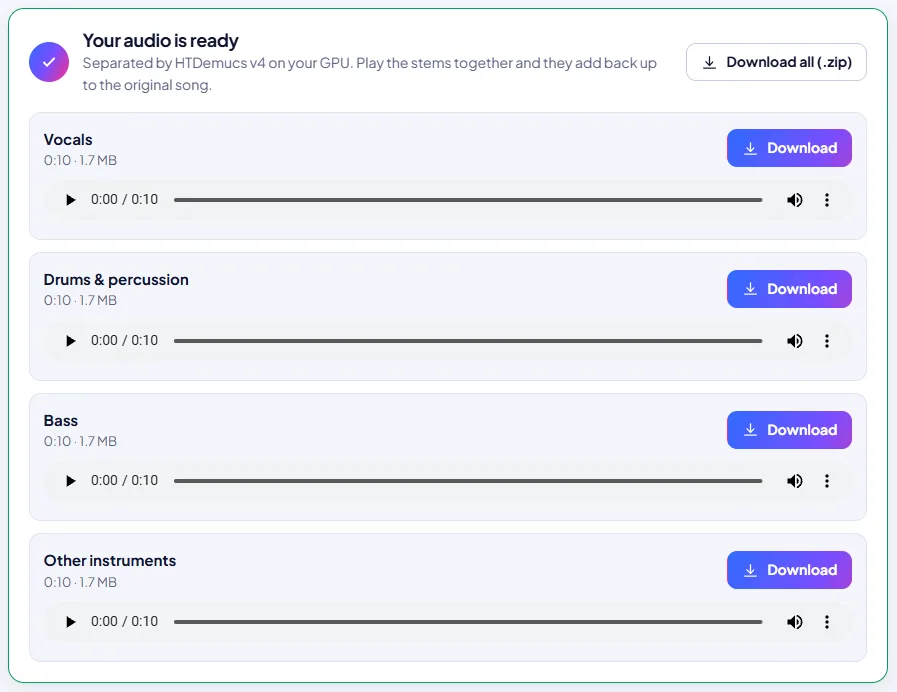
On a test clip where we knew the exact voice track, the vocal stem scored a signal-to-distortion ratio of 15.2 dB: most of the voice was recovered with little of the band leaking in. But when we replaced the real voice with a synthesised vowel melody, the model put it in "other", not "vocals". That's a practical reminder of the bleed rules above: the model assigns sounds by what they resemble in its training data. Unusual vocal processing, vocoders or instruments that imitate voices can end up in an unexpected stem.
How to check your stems
- Solo each stem at a moderate volume and listen through once. Bleed is easiest to hear in sparse sections.
- Vocals: listen for hi-hats under "s" and "t" sounds, and for any lead instrument that briefly appears between lines.
- Bass: listen for the thud of the kick drum. A little is normal, especially in genres where kick and bass are tuned together.
- Drums: listen for strummed guitar or plucked notes that have sharp attacks.
- Sum test: load all four stems into a multitrack editor at the same level. Together they should sound almost exactly like the original song, which confirms nothing was lost, only moved.
What to do with your stems
Play along with the band
To practise your own part, you want the song without your instrument. Load the four stems into a free multitrack editor (Audacity is a popular choice), mute your instrument's stem, and export the rest as one file. Singers don't need this step: the Vocal Remover's instrumental is exactly "everything except vocals".
Learn or transcribe a part
A bass line that's hard to hear in the mix is often obvious on its own. Solo the bass stem, cut the bars you're learning with the Audio Cutter, and slow it down with the Audio Speed Changer while keeping the pitch. The slow-down practice guide has a full routine.
Study the arrangement
Listening to the drums alone reveals ghost notes and hi-hat patterns; listening to "other" shows how the chords are voiced. It's a quick way to understand how a production is put together.
Remixes, mashups and DJ edits
Producers use separated vocals and drums as the starting point for remixes, and DJs use acapellas and drum-only sections for transitions. If you'll publish anything, remember that the stems are still the original artist's recording (see the note below).
Rebalance a mix for practice
Because the stems add back up to the original, you can recreate the song with one part louder or quieter: vocals down 6 dB for a sing-along, or bass up for practice.
About the Instant engine
The Instant engine needs no download and uses classic signal processing:
- Drums are taken from the short, percussive parts of the sound, found by comparing how the spectrum changes over time and across frequency.
- Bass is the sustained, low-frequency part (mostly below about 200 Hz).
- Vocals are sustained, mid-frequency sound that sits in the centre of the stereo image.
- Other is everything left over, so the four stems always add back up exactly.
It works best on stereo files with a centred vocal, and it can't tell a centred guitar from a voice. Treat its stems as a preview and use the AI engine for anything you'll keep.
Troubleshooting
| Problem | Likely cause | Try this |
|---|---|---|
| Guitar or piano missing | They're in the "other" stem; there are only four stems | Use the "other" stem; it contains all harmony instruments |
| Kick drum audible in the bass stem | Kick and bass overlap in frequency and timing | Normal in small amounts. For practice, it's usually not a problem. |
| Watery or swirly sound in every stem | A low-bitrate or heavily compressed source | Find a better copy. The model can't separate detail that isn't there. |
| Very slow | No WebGPU, so the CPU is doing the work | Use an up-to-date Chrome or Edge on a computer |
| "Could not download the AI model…" | Connection problem, or the model host is blocked on your network | Try another connection; the model is cached once downloaded |
| Browser tab crashes | Not enough memory for a long song | Cut the song into parts, separate each, and join the results |
About rights. Separating a song doesn't change who owns it. Using stems for personal practice and study is very different from releasing a remix, uploading a backing track or using a sample in your own release, which all need permission from the rights holders.
References
- Rouard, Massa and Défossez, "Hybrid Transformers for Music Source Separation" (2022).
- MUSDB18, the dataset that defines the standard vocals / drums / bass / other split.
- Audacity, a free multitrack editor for muting or rebalancing stems.
Frequently asked questions
Can I separate a song into more than four stems?
Not with this tool. It uses a four-stem model, so guitar, piano and other harmony instruments share the "other" stem.
How do I get a song without the drums?
Split the song, then load the vocals, bass and other stems into a multitrack editor such as Audacity and export them together, leaving the drums stem out.
Should I download stems as WAV or MP3?
WAV if you'll edit, mix or process them further. MP3 if you only need to listen or practise, since the files are much smaller.
Why does the vocal stem have hi-hats in it?
"S" and "t" sounds and cymbals are both bursts of high-frequency noise, so they're easily confused. A little hi-hat bleed in the vocal stem is common with every separation model.
Is the stem splitter free?
Yes, with no account or credits. The limits are your device's memory and processing speed.
Is my song uploaded?
No. The model is downloaded to your browser and the separation runs on your device.
Try it yourself
Stem Splitter
Break a mixed song into vocal, drum, bass and instrument stems using AI.
Open toolVocal Remover
Split a song into an instrumental and a separate vocal track with AI.
Open toolAudio Speed Changer
Play audio faster or slower, with natural-sounding pitch.
Open toolAudio Cutter
Snip out a clip or ringtone, or delete an unwanted section from the middle.
Open tool