How-to
How to Extract Audio from a Video File
Phone videos, screen recordings, lectures and interviews often need to be audio-only: for a podcast, a transcription service, or just to listen without the picture. Every video file already contains a separate audio track, and you can save it as an MP3 in your browser.
Quick answer
Open the video file in the MP3 Converter (MP4, MOV and WebM files work in current browsers), choose 192 kbps for music or 96 kbps mono for speech, and press Convert to MP3. The picture is discarded and only the soundtrack is saved. The file never leaves your device, but the tool can't download videos from websites.
What's inside a video file
A file like holiday.mp4 is a container: a wrapper holding separate streams of data. Usually there's one video stream (the picture) and one audio stream (the sound), plus timing information that keeps them in sync. The audio stream is already compressed with an audio codec, typically:
| Video file | Usual audio codec | Common sources |
|---|---|---|
| .mp4 | AAC | Phones, cameras, most video downloads and exports |
| .mov | AAC (sometimes uncompressed PCM) | iPhones, Macs, some cameras |
| .webm | Opus or Vorbis | Browser screen recorders, some web exports |
Extracting audio means decoding just that audio stream and saving it in an audio format. The picture is never processed, so it's quick.
Step by step
- Get the video file onto your device: from your phone's gallery, a screen recorder, a meeting app's export, or a camera card.
- Open the MP3 Converter and drop the video in. You can add several videos at once.
- Choose the quality. For speech (lectures, meetings, interviews) choose Mono and 96 kbps. For music, keep the original channels and choose 192 kbps.
- Press Convert to MP3. Each file shows its new size when it's done.
- Download the MP3s one by one, or all of them as a ZIP.
Tested example
We recorded two 8-second test videos in the browser, one MP4 (H.264 video with AAC audio) and one WebM (VP9 video with Opus audio), both carrying a synthesised music soundtrack, and converted them at 192 kbps.
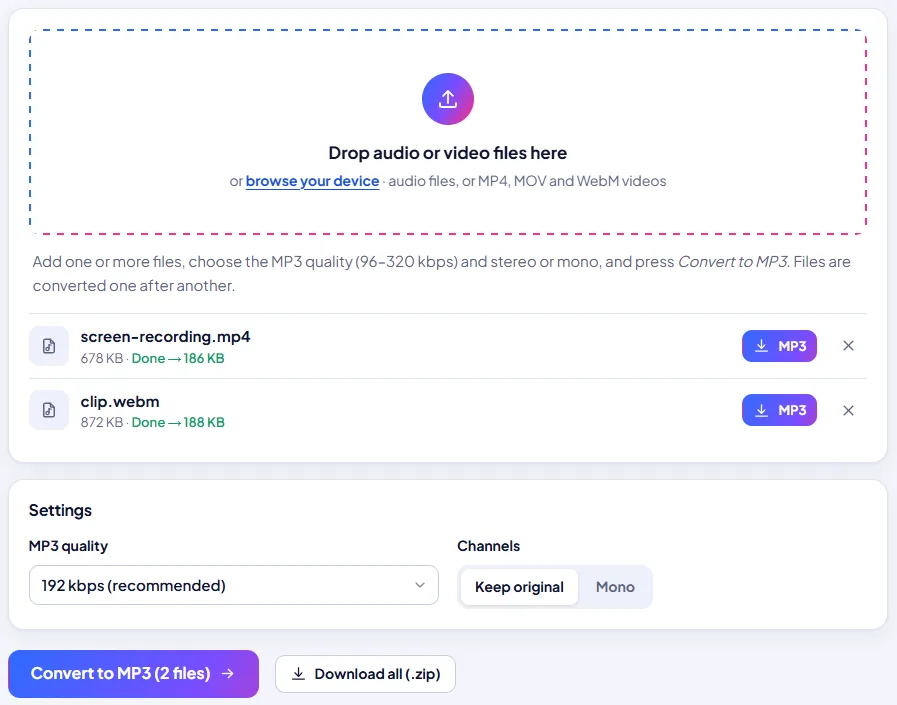
Both soundtracks came out as 44.1 kHz stereo MP3s, about 8 seconds long, with peak levels within 0.4 dB of the source soundtrack (around −3 dBFS). Converting both took about 1.7 seconds.
Choosing settings
- Don't go higher than the source. Phone videos usually carry AAC audio at roughly 128–256 kbps. Converting at 320 kbps just makes a bigger file; it can't add detail. Our bitrate guide has a full table.
- Speech compresses well. A one-hour lecture at 96 kbps mono is about 43 MB. Need it smaller for email? See compressing audio for email.
- Editing next? If you'll cut or process the audio further, use the Audio Cutter directly on the video file and save as WAV, so MP3 compression is applied only once, at the end.
Only need part of the video?
Open the video in the Audio Cutter instead of the converter. It shows the soundtrack's waveform, so you can select just the part you need (one answer from an interview, a song from a concert clip) and save that as MP3 or WAV.
Limitations
- No downloading from websites. The tool works with files already on your device. It can't fetch videos from YouTube, social networks or streaming services.
- Copy-protected video can't be read. Films and shows bought or rented from stores are usually protected (DRM).
- Format support depends on your browser. We tested MP4 with AAC and WebM with Opus. MOV files usually work when they contain AAC audio. Unusual audio codecs may not decode.
- Large files need memory. The whole video file is read into memory before its audio is decoded. Multi-gigabyte recordings can fail on phones and low-memory computers. Trim the video in your phone's editor first, or use a computer.
- Tags aren't kept. The MP3 contains audio only, without titles or cover art.
Troubleshooting
| Message or problem | Likely cause | Fix |
|---|---|---|
| "…contains no audio." | The video has no soundtrack (common with silent screen recordings) | Check the original recording had sound enabled |
| "Couldn't read…" | Unsupported audio codec, DRM, or a damaged file | Try current Chrome or Edge; re-export the video from its app as MP4 |
| Tab freezes or reloads | Very large file and not enough memory | Trim the video first, or convert on a computer |
| The MP3 is quiet | The video's sound was recorded quietly | Normalize it in the Volume Booster |
References
- MDN web audio codec guide: the audio codecs used in video containers and browser support.
- decodeAudioData(), the browser feature the converter uses to read the soundtrack.
Frequently asked questions
How do I convert MP4 to MP3 for free?
Open the MP4 in the MP3 Converter, choose a bitrate (192 kbps for music, 96 kbps mono for speech) and press Convert to MP3. It runs in your browser and the video isn't uploaded.
Can I extract audio from a video on my phone?
Yes, in a modern mobile browser, provided the video file is saved on the phone. Very long or high-resolution videos may be too large for a phone's memory.
Does extracting audio lose quality?
Saving as MP3 re-encodes the audio, which loses a little. At 192 kbps the difference is hard to hear for most material. Save as WAV with the Audio Cutter if you need to avoid any further compression.
Can I get the audio from a YouTube video?
Not with these tools; they can't download from websites. Only use video files you have and are allowed to use.
Is my video uploaded anywhere?
No. The file is read and converted by your browser on your device.
Try it yourself
MP3 Converter
Turn M4A, FLAC, OGG, WAV or video soundtracks into universally playable MP3s.
Open toolAudio Cutter
Snip out a clip or ringtone, or delete an unwanted section from the middle.
Open toolAudio Compressor
Make audio files smaller for email, messaging apps and upload limits.
Open toolVolume Booster
Raise the level of quiet recordings safely, or turn loud ones down.
Open tool