How-to
How to Make a Ringtone from a Song
A good ringtone is short, starts on something recognisable and loops without a jolt. You can cut one from any song you own in a couple of minutes. Here's how to pick the section, cut it cleanly, and get it onto an Android phone or an iPhone.
Quick answer
Open the song in the Audio Cutter, select the 20–30 seconds you want, choose Keep selection, add a 0.5 s fade in and a 1–2 s fade out, and save as MP3. Android phones can use the MP3 directly. iPhones need the clip turned into a ringtone in GarageBand on the iPhone, or synced from a computer as an .m4r file.
Pick the right section
Phones play a ringtone from the start and loop it until you answer, so the first two seconds matter most. Good choices:
- The start of the chorus, which is the part people recognise.
- A distinctive riff or intro that's loud from the first beat. Avoid slow fade-ins; on a ringtone they sound like silence.
- 20–30 seconds. Long enough to be pleasant and short enough to loop. Keeping it under 30 seconds is a safe length for both Android and iPhone.
Play the song and note the start and end times (for example 0:48 to 1:14). Starting a fraction of a second before a strong beat gives a punchy opening.
Cut it in the Audio Cutter
- Open the song in the Audio Cutter. Any format your browser can read works, including the audio in a video file.
- Select the section. Drag across the waveform, then type exact times into the start and end fields (for example
0:48.20). Press Space to listen to the selection. - Keep Keep selection chosen as the mode.
- Add fades: about 0.5 s in and 1–2 s out. The fade-out matters most: without it the loop restarts mid-note with an audible click.
- Save as MP3 at 192 kbps. That's plenty for a phone speaker, and the file stays small.
- Press Cut audio, check the result in the player, and download it.
Tested example
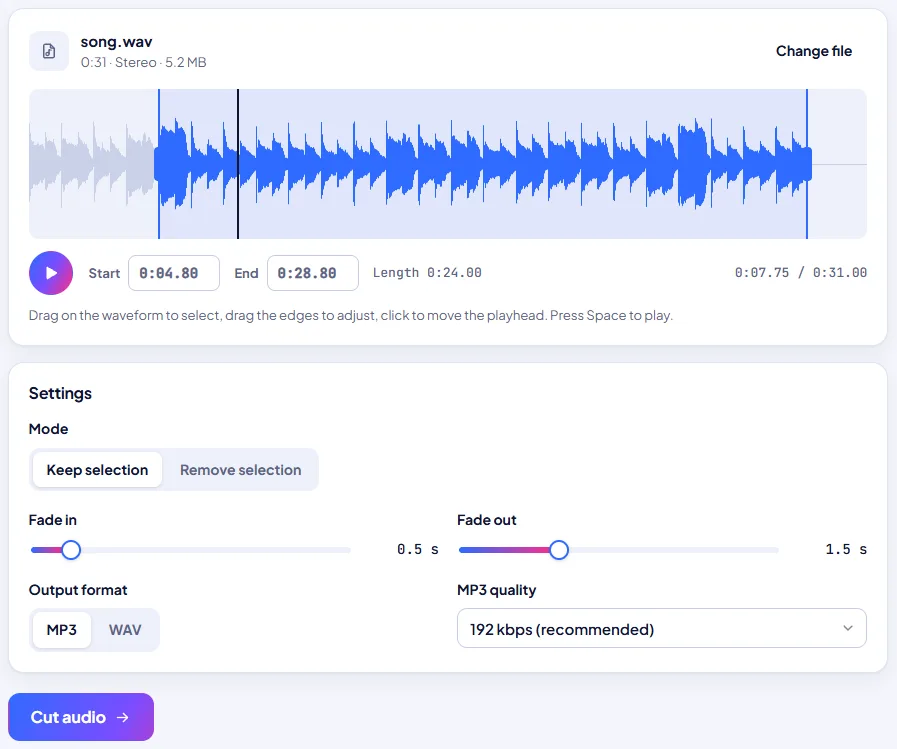
The result was a 24.0-second MP3 of 563 KB, made in about 2.6 seconds. That's small enough to send to your phone by email or a messaging app.
Make it loud enough
Quiet, dynamic songs can make weak ringtones. If yours sounds soft next to the phone's built-in tones, open the clip in the Volume Booster and press Normalize to −1 dB. That brings the loudest moment just below full scale without distortion. Our guide to increasing volume without clipping explains why −1 dB is a sensible ceiling for MP3.
Set it on Android
Android phones accept MP3 ringtones directly. The exact menu names differ between manufacturers and Android versions, but the route is usually the same:
- Copy the MP3 to the phone: download it on the phone, or transfer it by USB and put it in the Ringtones or Music folder.
- Open Settings, then Sound (sometimes Sound and vibration), then Phone ringtone.
- Choose the option to add a ringtone or pick one from your files (often a "+" button or "From device"), and select your MP3.
The same file can be used as a notification or alarm sound from the matching settings. For a notification, cut a much shorter clip of 1–3 seconds.
Set it on iPhone
iPhones don't use MP3 files as ringtones. A ringtone has to be in Apple's ringtone format (AAC audio with the .m4r extension) and has to be added in a specific way. There are two common routes:
With GarageBand on the iPhone
- Save the MP3 to the Files app on your iPhone.
- Open GarageBand (free from Apple), create a project, and import the MP3 from Files.
- Use GarageBand's share option and choose Ringtone. GarageBand converts it and offers to set it straight away.
With a Mac or PC
- Convert the MP3 to AAC in Apple's Music app (or iTunes on Windows), which creates an
.m4afile. - Rename the file's extension from
.m4ato.m4r. - Connect the iPhone and drag the
.m4rfile onto the device in Finder (macOS) or in iTunes/Apple Devices (Windows).
Apple changes these menus from time to time, so the wording may differ slightly on your version. Then go to Settings → Sounds & Haptics → Ringtone to select it.
Troubleshooting
| Problem | Fix |
|---|---|
| A click every time the ringtone loops | Add or lengthen the fade-out (1–2 s), and make sure the cut doesn't end mid-note. |
| The ringtone starts with silence | Move the start point to the first beat, or use the Audio Trimmer's auto-trim. |
| Too quiet on the phone | Normalize to −1 dB in the Volume Booster. |
| The MP3 doesn't appear on the iPhone | iPhones don't list MP3s as ringtones. Use one of the iPhone routes above. |
| The song won't open | The file may be copy-protected (DRM) or in a format your browser can't decode. Purchased tracks from some services can't be edited at all. |
About rights. Use songs you own, for your own phone. Copyright rules differ between countries, and sharing or selling ringtones made from commercial music needs permission from the rights holders.
Frequently asked questions
How long should a ringtone be?
20–30 seconds is a good length: it loops naturally and stays under the length limits phones apply. Notification sounds work best at 1–3 seconds.
Can I make a ringtone from a YouTube video?
Our tools can't download from websites. If you have a video file on your device that you're allowed to use, open it in the Audio Cutter and it works on the soundtrack.
Why does my ringtone click when it repeats?
The end of the clip jumps straight back to the start. A short fade-out (1–2 seconds) and a fade-in (about half a second) remove the jump.
What format should a ringtone be?
MP3 for Android. For iPhone, a ringtone must be converted to Apple's .m4r ringtone format, for example with GarageBand.
Is it free?
Yes. Cutting and exporting happen in your browser, with no account and no watermark.